
Home screen
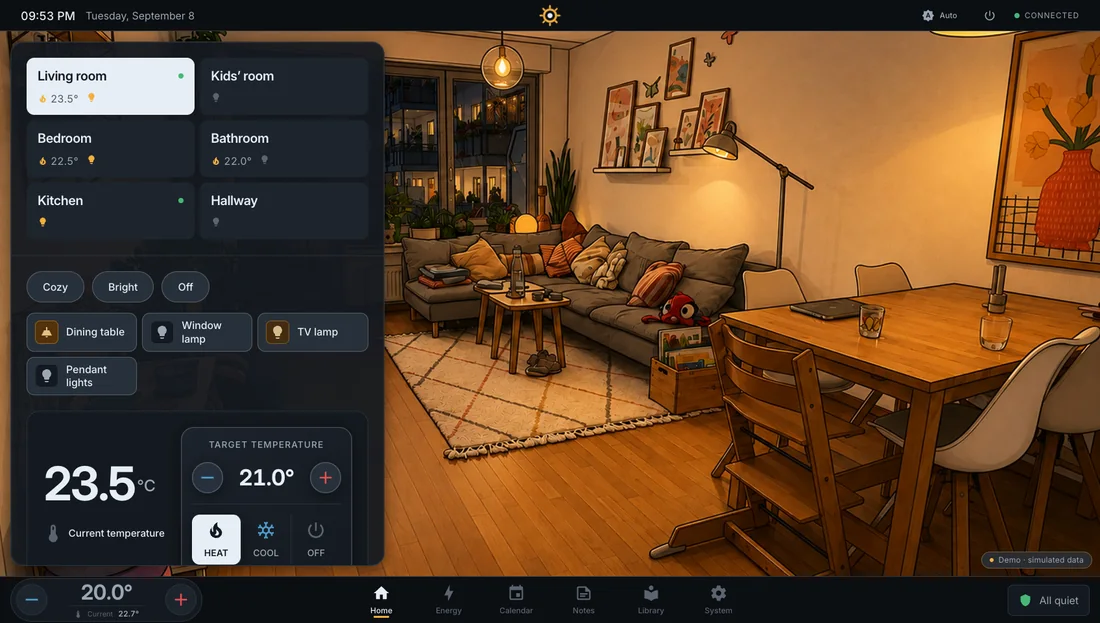
The home screen is where a panel spends its active time. It has two parts.
- The stage is the large room picture. It follows daylight, the weather and the lights in the room.
- The control surface holds the room’s scenes and devices. On the panel it sits beside the stage.
Two views
Section titled “Two views”Long-press a free area of the stage to open the layout menu. The View pill switches between:
- Full screen. One room picture, the room picker at the top of the control surface.
- All rooms. Every room as a tile with picture, name and light status. The control surface belongs to the selected room and carries its name.
Rooms per row sets the tile columns.
Swipe the controls away
Section titled “Swipe the controls away”Swipe left on the control surface and it flies out of the picture. The stage takes the full width. The next touch brings it back. A tap on a tile also selects that room.
Layout menu
Section titled “Layout menu”The layout menu has no Apply button. Every setting takes effect at once:
- view and rooms per row
- the width of the control area, separately for Home and Energy
- a second control surface at the bottom with a fixed room of its own
- Reset to default
A swipe from right to left anywhere on the stage opens the menu. A swipe to the right, a tap beside it or Escape closes it.
Title bar
Section titled “Title bar”The title bar carries the connection state, the edit or use mode mark in the middle, the appearance button, the central climate pill and the standby button.
Idea behind it
Section titled “Idea behind it”The room should stay visible. Controls stay narrow, and when you want the picture alone, you swipe them away.